
Below is how to set up a new Point To Point set up with Unifi.
To begin open the quick start guide below:
https://dl.ubnt.com/qsg/Loco5AC/Loco5AC_EN.html
This may give you all you need to get started, but if not then please read on to learn how.
Step One, The PoE adapter:
Now this should actually be step -1 because it is a prerequisite to setting up your new nanostation, but it also caught me out. The Nanostation does not support 802.1af, meaning that switches that use that PoE standard will not work.
For them to work you need a 24v Passive PoE adapter, like this one below:
https://uk.store.ui.com/uk/en/products/poe-24?variant=poe-24-12w-g-eu
These can also be found cheaper on places such as Amazon.
Step Two, Booting up.
Plug in both of your devices in the following setup (This will mimic your end set up)
For sake of ease I will be calling one, NanoStationBase which will be the one connected to your LAN, and NanoStationRemote will be the one in your remote location (Shed, office etc..)
PoE Adapter into LAN (Where it says LAN IN) ->
PoE Adapter into NanoStationBase (Where it says PoE Out)
PoE Adapter into NanoStationRemote (Where it says PoE Out)
Step Three, config.
You should now see that you have two new SSIDs, you can view these on a phone or laptop. They will be called:
<model>:<MAC Address>
Start by connecting to the NanoStationBase (This can be seen by the MAC address which will also be on a sticker on the nanostation)
Go to setup.ui.com, this should bring you to a user account setup page. Start by setting up a user account.
Once set up login and go to the wireless settings page on the left of the screen:
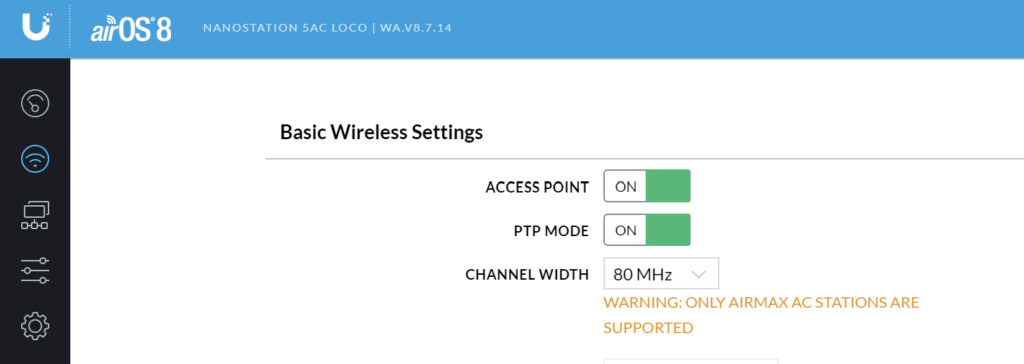
Enable access point mode on the NanoStationBase, you can also change the SSID further down, you just have to make sure you set this the same on both. Save the config.
Repeat all the above steps for the Remote station bar the Access point enablement, this is because we want the remote to connect to the Base so the Remote should not be an access point.
You should now be able to connect into the LAN IN port on the Remote Nanostation PoE adapter and get an internal IP address
Step Four, testing and further setup.
On the home page you should now see your Nanostations like below:
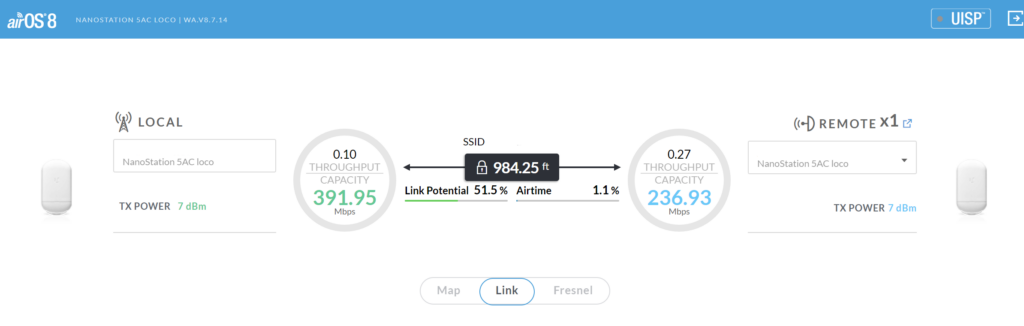
In my set up I have the remote Nanostation connected to a UniFi Access point that provides clients access to my internal network. This required no further setup then to plug the access point into the LAN port on the PoE switch powering the Nanostation
PoE 24v Power Out -> NanostationRemote
LAN on NanoStation PoE adapter -> LAN on Access Point PoE adapter
PoE on Access Point PoE adapter Power Out -> UniFi Access Point
Also please be sure to disable the management access once the device is set up. This is on the system page:

Be sure to check out our other Cyber Security posts for more information:
Leave a Reply